


Why HubSpot email personalization works
HubSpot’s personalization is based on one simple fact: all the data you need about your subscriber is already in your CRM: their name, company, job title, lifecycle stage, and website activity. You don’t need any separate data systems, complex integrations, or to fetch any missing information.
Build one HubSpot email template, drop in Personalization Tokens tied to contact properties, add Smart Content for different segments, and you’re good. No scripting, no API calls, no multiple versions to maintain- nothing complex at all.
The trade-off is that HubSpot personalization is limited to what lives in your CRM. You won’t fetch real-time inventory or current weather. But for most B2B and mid-market marketing teams, what’s in your CRM is exactly what you need.
In this guide, we will take you through HubSpot’s personalization approach in detail. By the end, you’ll learn how to build dynamic, relevant emails without complexity in HubSpot.
The HubSpot personalization toolkit
HubSpot offers five core personalization features:
- Personalization Tokens – Contact and Company properties
- Default Values – Fallback text when data is missing
- Company Properties – B2B personalization
- Smart Content – Segment-based content blocks
- Automated Workflows – Trigger personalization based on actions
Most effective emails combine the first three. Smart Content is where personalization becomes strategic. Let’s start simple.
Before we begin: Sample CRM data
Throughout this guide, we’ll reference this sample contact database.


This data illustrates how each personalization method works across different contacts and stages.
Level 1: Personalization Tokens
HubSpot Personalization Tokens pull directly from HubSpot contact properties. They’re the simplest way to personalize.
Basic syntax
Hi {{ contact.firstname }},When the email is sent, HubSpot replaces this with the contact’s first name.
Output for Aditya:
Hi Aditya,
Combining multiple properties
Hello {{ contact.firstname }} {{ contact.lastname }},

Welcome from {{ contact.city }}.
Output for Aditya:
Hello Aditya Patel,

Welcome from Ahmedabad.
Common contact properties you can personalize
- First Name
- Last Name
- Email Address
- Company Name
- Job Title
- Phone
- City
- State
- Country
- Any custom property you’ve created
When to use: Any straightforward contact data from your CRM. Personalization Tokens are the fastest way to personalize in the HubSpot email marketing platform.
Level 1.5: Default Values
Not every contact on your list will have a complete profile. If a first name is missing, a bare Personalization Token displays awkwardly.

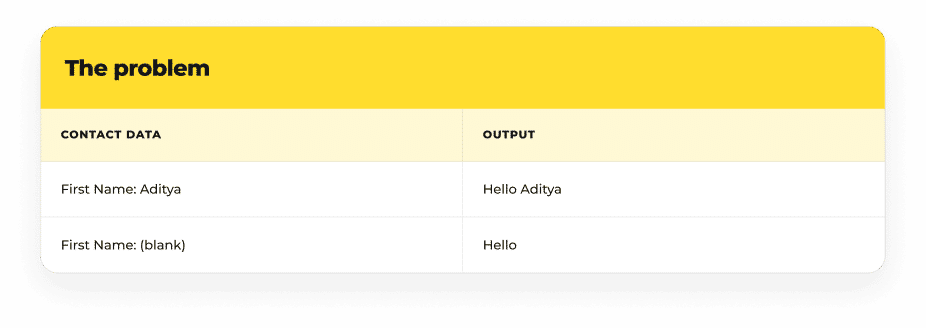
The blank greeting looks broken.
The solution: Default Values
Configure a fallback value:
Hi {{ contact.firstname default="Friend" }},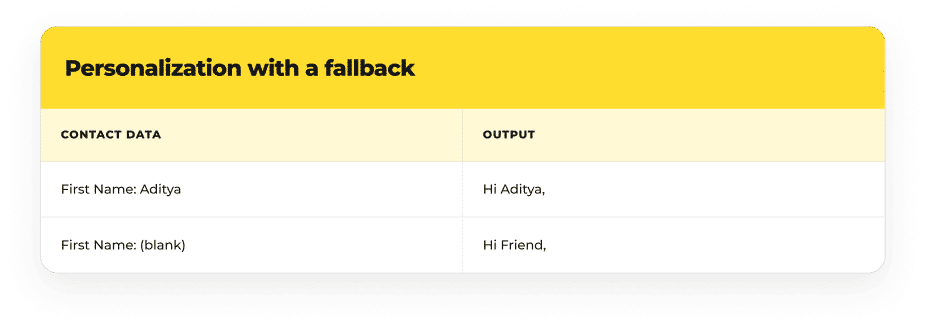
Now, even if their first name is missing, every contact on your list will receive a professional greeting.
When to use: Always configure defaults for any important Personalization Token. Names, company, job titles—anything that might be empty.

Level 2: Company Properties
If you are a B2B organization, personalize your campaigns using company-level information, not just individual contact data.
Basic syntax
We created this guide specifically for the team at {{ contact.company }}.Output for Aditya (Mavlers):
We created this guide specifically for the team at Mavlers.Other company properties
- Company Name
- Industry
- Website
- Number of Employees
- Annual Revenue
- Company Phone
Account-based marketing benefits from this because here your messaging addresses the organization, not just the individual contact.
When to use: B2B campaigns, account-based marketing, organizational messaging, and when you have company-specific offers.
Level 3: Smart Content
HubSpot Personalization Tokens insert individual values. Smart Content displays entire content blocks differently based on contact segments or properties.
Lifecycle stage-based content
Show different messages based on where the contact is in their journey:
For customers:
Thanks for being a valued customer.
Explore New Features
For leads:
Ready to get started?
Book a Demo
Both contacts will receive the same email template. And HubSpot email marketing platform will show the right content block based on the contact’s Lifecycle Stage property.
Smart content criteria
You can show/hide content blocks based on:
- Lifecycle Stage (Lead, Customer, Subscriber, etc.)
- Country
- Device Type (Mobile, Desktop)
- List Membership
- Custom Contact Properties
- Multiple conditions combined
Effective Smart Content depends on clean, organized segments. HubSpot email segmentation—how you define and organize your audiences—directly impacts how well Smart Content delivers personalization. If your segments are unclear or poorly defined, Smart Content shows the wrong content to the wrong people.
Dynamic calls-to-action
Different contacts need different next steps:


You don’t need separate emails for separate contacts. Just this one template with Smart Content will automatically show the right CTA for every contact.
How Smart Content works
Smart Content doesn’t require code. You:
- Create a content block in the email
- Set visibility rules (e.g., “show if Lifecycle Stage = Customer”)
- Add the content
- HubSpot handles the rest
When to use: When content changes meaningfully by contact segment. Smart Content is where simple personalization becomes strategic.
Level 4: Personalization in automated workflows
HubSpot personalization becomes even stronger when you combine it with automated workflows. HubSpot automated emails trigger based on contact actions or properties, personalizing each message based on CRM data. This is where one-time personalization becomes a scalable, ongoing strategy.
Common use cases
- Welcome emails – Personalized based on contact source and company
- Lead nurturing campaigns – Different content based on industry or company size
- Customer onboarding – Feature highlights based on product purchased
- Event invitations – Targeted messaging based on contact properties
- Product announcements – Personalized based on customer segment
- Renewal reminders – Customized based on contract value or industry
- Re-engagement campaigns – Win-back messaging for disengaged segment
Here, your personalized email template adapts to each contact. So while the workflow triggers at the right moment, personalization ensures each contact receives relevant content.
When to use: When you want to avoid manual work and have consistent, scalable personalization requirements across recurring campaigns.
A real-world welcome email example
Here’s how HubSpot personalization works in practice:
Hi {{ contact.firstname default="there" }},

Welcome to Mavlers. We're excited to have the team at {{ contact.company }} onboard.

{% if contact.lifecyclestage == "customer" %}
  As an existing customer, explore our latest features to maximize your success.
  [Explore New Features]
{% else %}
  Let's show you how Mavlers can help your team.
  [Book a Demo]
{% endif %}

If you have any questions, reach out to our support team.

Best,
The Mavlers Team
This single email combines:
- Personalization Tokens (first name, company)
- Default values (if first name is missing)
- Smart Content/Conditional Logic (different CTA by lifecycle stage)
Testing personalized emails in HubSpot
Before sending any campaign, verify:
Personalization Tokens
- Contact properties display correctly
- Default values appear when data is missing
- All tokens are properly formatted
Company Properties
- Company names and industry information display accurately
- Company-level personalization works for B2B emails
Smart Content
- Different content blocks display for different segments
- Each lifecycle stage sees the correct CTA
- Device-based rules work (mobile vs. desktop)
Email Rendering
- HTML renders consistently across Gmail, Outlook, Apple Mail, Yahoo Mail
- Mobile rendering is clean and readable
- All links and buttons work
Real-World Testing
Test with multiple contacts representing different segments:
- A new lead (missing some fields)
- An existing customer
- A contact from a different country
- A contact without a company name
Testing helps prevent HubSpot email personalization errors before emails reach subscribers. Once you know what to test, the next consideration is which template editor to use. HubSpot offers multiple ways to build emails—drag-and-drop, custom HTML, templates. Our comparison of HubSpot email template editors helps you choose the right approach for your team’s workflow and technical capability.


Common mistakes you should avoid
1. Forgetting to configure default values
- Blank names and empty fields look unprofessional
- Always set fallback values for important tokens
2. Using outdated or incorrect property names
- HubSpot property names are case-sensitive
- If a property name changes, tokens stop working
- Verify property names in your HubSpot settings
3. Over-personalizing every section
- Adding personalization to every element dilutes impact
- Personalize strategically where it matters most
4. Creating multiple templates instead of using Smart Content
- Harder to maintain, easier to introduce inconsistencies
- Use one template with Smart Content blocks
5. Not testing emails with different contacts
- Tokens might work for some contacts but not others
- Always test with contacts from different segments
6. Mapping properties incorrectly
- Ensure contact and company properties are correctly linked in your CRM
- Incomplete data leads to failed personalization
Some best practices for developers to follow
Token configuration
- Always set default values for potentially missing fields
- Use descriptive token names that make template purpose clear
- Document which properties are used and why
Smart content strategy
- Group related Smart Content rules for clarity
- Keep visibility conditions simple and understandable
- Test each condition to ensure it shows to the right audience
Template maintenance
- Build reusable, modular templates
- Use descriptive section names in your email editor
- Document which properties each email depends on
Testing workflow
- Test emails with contacts from every segment you’re targeting
- Verify rendering across desktop and mobile clients
- Check all links and CTAs work correctly
Performance
- Avoid overly complex personalization logic
- HubSpot handles personalization efficiently—keep it simple
- Monitor campaign performance to ensure personalization drives results
Building personalized templates from scratch takes time, expertise, and maintenance overhead. Many teams underestimate these costs. Our guide on hidden costs of DIY HubSpot templates explores why template strategy matters as much as personalization capability.

Final word
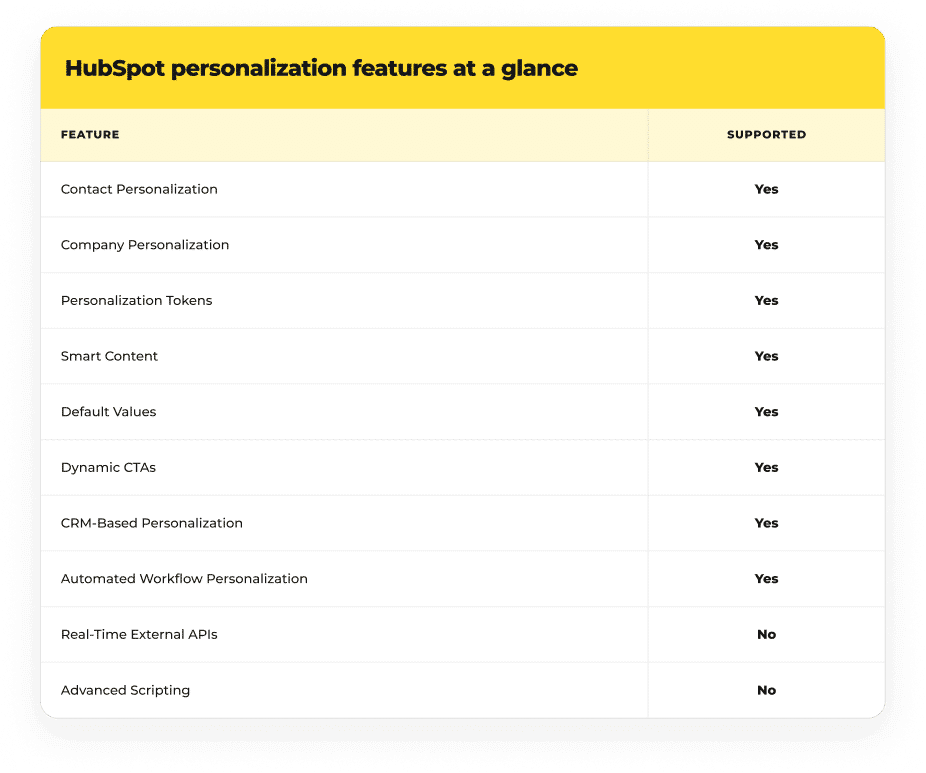
HubSpot email template personalization is simple: no advanced scripting, real-time API calls, or choosing between five different token types. What you get too is very straightforward: CRM data, Personalization Tokens, Smart Content, and automation.
You don’t need technical expertise to use HubSpot email personalization, and that is what makes HubSpot special for marketers. Moreover, you can also integrate HubSpot seamlessly into your CRM workflow.
Here’s a simple route to follow if you want to make personalization effective in HubSpot:
- Start with Personalization Tokens for basic customization.
- Next, add in Smart Content when different segments need different messages.
- When you are ready to scale personalization across your entire marketing engine, combine both with automated workflows.