


Your Marketo instance is 7 years old and has, say, 47+ templates. Some may be active; some forgotten. The Classic Editor is showing its age: Outlook rendering breaks, mobile optimization is clunky, and hitting the 500-associated-email limit makes Design Studio perform poorly.
With the Classic Editor becoming a roadblock for users, Adobe released the Adobe Marketo Engage Email Designer in 2025. The new Email Designer delivers modular architecture, responsive design that actually works across clients, reusable fragments, AI-powered content, and proper brand governance.
However, even after introducing the new Email Designer, both editors run in parallel, and there’s no forced migration. But this means managing two template systems, two quality standards, and twice the maintenance burden.
So the question arises: what do we do with the old templates in our instance? A strategic Marketo email template migration doesn’t involve converting everything but it’s about making intentional choices. Will certain templates work as-is? Which templates should you retire? This is where most teams drift into indecision. We’ll give you a framework to make that call systematically.
Why this decision matters more than you think
Before we get into the tactical “which template goes where” conversation, let’s talk about why this audit really matters, and why legacy Marketo email template migration shouldn’t be a scramble, but a planned strategy.
The hidden debt
Many Marketing Operations teams treat Design Studio email templates as permanent infrastructure, but a harsh reality comes with it. Adobe recommends a limit of 500 associated email assets per template. Exceeding this often causes severe performance issues in Marketo Design Studio, including editor failures, corrupted assets, and the dreaded “Cannot Load Email” error.
Every template you keep is a maintenance obligation. When you need to update a disclaimer, change brand colors, or adjust footer compliance messaging, do you update it in 47 places or 30?
The training nightmare
New team members shouldn’t have to become archaeologists. When someone has to ask “which template do I use?” and the answer is complicated, that’s friction. It’s a small thing that kills velocity at scale.
The technical ceiling
The Email Designer represents capabilities the Classic Editor simply doesn’t have. Responsive previews across desktop, tablet, and mobile, reusable fragments (header, footer, CTA blocks), content locking to prevent accidental edits, AI assistance for content creation, and modern rendering that works reliably in email clients like Outlook.
All of these positively impact deliverability, click-through rates, and your ability to A/B test effectively.
The risk surface
Classic templates built in the old editor (v1/v2) aren’t compatible with the Email Designer. The more old templates you have, the more potential failure points you will open up – broken templates discovered mid-campaign, templates with hardcoded values instead of dynamic fields, templates nobody knows who built or why.
Note: Both editors coexist (for now)
Before we go further, understand this: The Classic Editor and new Email Designer run in parallel. There’s currently no plan to deprecate the old editor. This means:
- Emails built in the Classic Editor stay there
- You choose which editor to use when creating new assets
- There’s no automatic migration between old and new templates
This coexistence is actually a feature that gives you time to be strategic instead of forced. But it also means every day you delay, you’re managing two template systems.
Your template decision framework: convert, rebuild, or retire
Any good Marketo migration services provider will tell you that the key isn’t to flip the switch overnight. Instead, use the new Email Designer to gradually clean up your email estate through a structured Marketo legacy template migration process. Not every template gets the same treatment. So, here’s a ruthless but structured approach:
Convert: when your template still does what it’s supposed to
What this profile looks like
These are your workhorses. They’re built with best practices in mind, actively used, and, most importantly, they do their job well.
- A promotional email template that gets used for your quarterly campaign push.
- A nurture email that’s sending thousands of leads down your funnel each month.
We can say these aren’t broken but just old.
Why to convert (and not rebuild)
Conversion takes your existing HTML, CSS, and logic and translates it into the new Email Designer’s module-based structure. Basically, you preserve what works while making it compatible with the new architecture. For a template that’s already optimized and performing, this is the lowest-risk path.
How to identify these templates
- Monthly send volume: more than 50 sends in the last quarter
- Engagement metrics: open rates and click rates in line with or above your company averages
- Code quality: clean HTML, minimal inline styles, logical structure
- Clear business purpose: you can articulate exactly when and why this template is used
- No technical debt: no hardcoded sender names, weird variable logic, or browser-specific hacks
How to convert
Don’t just copy-paste the HTML. This is your moment to actually look at what you built. The Email Designer lets you build reusable components (headers, footers, CTAs) as fragments that can drop into any email, with editable fields that let teams update text or images without breaking design integrity.
Break your legacy template into logical sections (header, hero, content blocks, footer). Map those sections to the Email Designer’s modules. You’ll often find you can do this in 30 minutes, and you end up with something that’s simultaneously backward-compatible and forward-thinking.
What to watch out for
If you find yourself thinking “actually, we should redesign this whole section,” stop. You’ve found a rebuild candidate.

Rebuild: when it’s time to start fresh
What this profile looks like
These templates are conceptually important. They serve real business needs, but their execution is showing its age.
- A complex lead nurture sequence that you know isn’t optimized for mobile.
- A webinar template that’s been tweaked 15 times and now has styling you don’t really understand.
- A campaign template that works but only because nobody touches the HTML under the hood.
Why to rebuild
Rebuilding means throwing away the old code and starting fresh with the new Email Designer’s tools. You’re keeping the concept and purpose but modernizing the mechanics. Many teams have hundreds of legacy Marketo templates, and rebuilding them gradually allows you to gather feedback on new templates, pilot with 1-2 programs, and then scale and deprecate legacy templates as defaults.
How to identify these templates
- Used regularly but not constantly: 20-50 sends per quarter
- Audience impact is moderate to high: conversion rates are solid, but engagement could be better
- Technical issues: CSS rendering problems in certain clients, mobile display issues, or code you don’t fully trust
- Business evolution: the template served its purpose 2 years ago, but your offering or brand has changed
- Limitation flags: If your workflows rely on segment-based dynamic content, be aware this isn’t yet available in the Email Designer. You’ll need to continue using the Classic Editor for those campaigns until this functionality launches.
What is the rebuild approach
The Email Designer features drag-and-drop components; a Styles tab to adjust button colors, padding, and fonts with a few clicks; content locking; personalization with tokens; conditional content for dynamic personalization; and reusable fragments. Here’s where you put in the work to get it right:
- Mobile-first design (not an afterthought)
- Clear variable architecture (your next team member should understand it immediately)
- A/B testing baked in (pre-defined variant sections)
- Compliance built in (not added later)
Rebuilding typically takes 2-4 hours per template, but you end up with something that will last another 3-5 years and actually support your team’s workflow.
The efficiency multiplier
If a template will be used 500+ times in the next 18 months, rebuilding is almost always worth it.
Retire: a tough decision but often the right one
What this profile looks like
These templates are living on borrowed time. Nobody’s sent from them in six months.
- They were built for a campaign that ended.
- They’re technically in your instance, but they’re not doing anything anymore.
Why retirement matters
This sounds simple until you realize that most teams have 30-40% template bloat. Templates that were “just in case,” templates built for specific one-off campaigns, templates whose purpose nobody remembers. Each one is cognitive load and maintenance risk for zero return.
How to identify these templates
- Send volume: fewer than 10 sends in the last 12 months (or zero)
- Business use: you can’t articulate a current business case for this template
- Redundancy: you have three templates that essentially do the same thing
- Knowledge gap: nobody remembers who built it or why
- Technical debt: the template uses deprecated practices or has known issues nobody bothered to fix
- Campaign lifecycle: it was built for a specific program that’s no longer running
The retention question
Before retirement, ask: “Would I rebuild this if it didn’t exist?” If the answer is no, it’s a retire candidate. If it’s yes but nobody’s been using it, Marketo provides a service that flags inactive trigger campaigns (with no activity for 6 months). This is a good indicator that associated programs and templates are archivable.
The audit trail
Before you delete, document. Take a screenshot and archive a copy to a shared drive somewhere. This takes five minutes and saves you from “wait, what was in that old nurture template?” questions three months later.
If the above feels too overwhelming, get support from a Marketo specialist agency to execute the template-cleaning process flawlessly. They can help you make the most of the new Email Designer.
A simple decision matrix to help you make the call
Create a spreadsheet with every template in your instance. For each one, score it:
Conversion Score: Usage frequency + code quality + clear business case = template can be converted as-is
Rebuild Score: Moderate usage + technical issues + high business value = worth rebuilding
Retire Score: Low usage + redundant + nobody can explain it = archive and remove
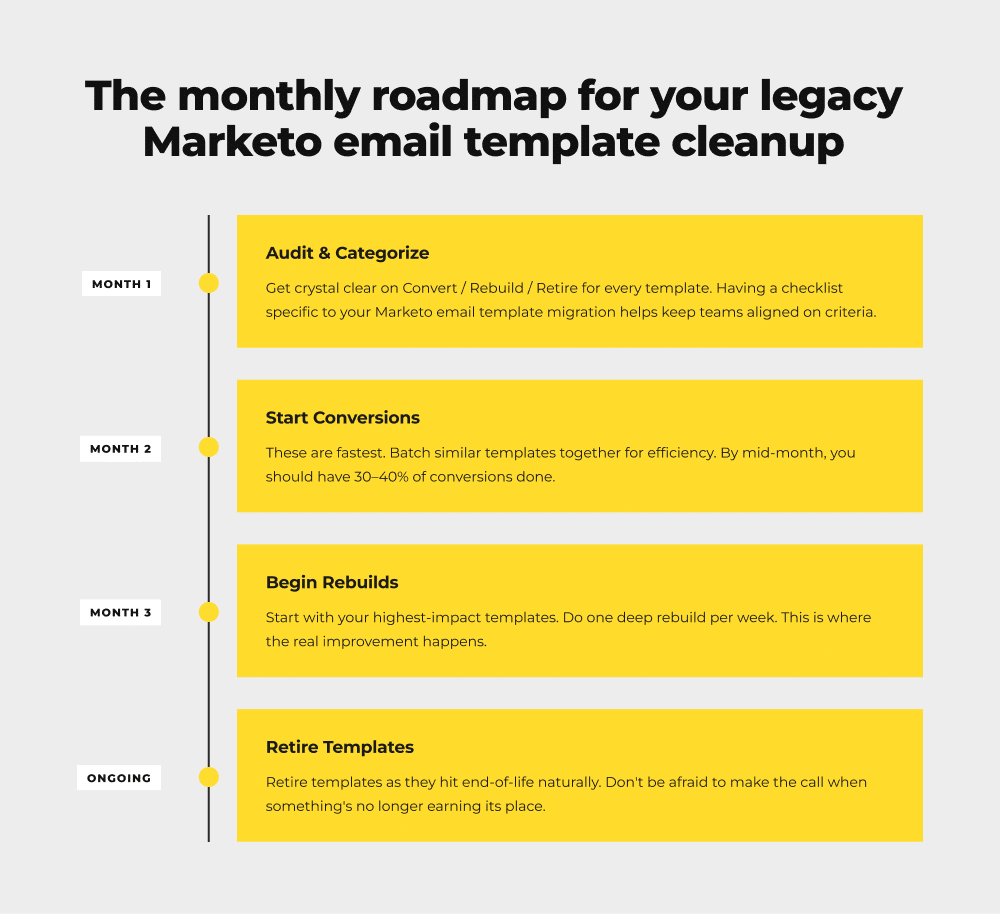
Templates scoring high on Conversion? Batch those conversions and do them over two weeks. Templates scoring high on Rebuild? Prioritize by impact—highest usage first. Everything else? Time to clean house.
A practical timeline that works
Running everything at once won’t help. Run a new nurture sequence or monthly newsletter exclusively on Email Designer templates. Now, gather feedback. Work on the feedback, refine the template, and then roll the new templates out as the default. Trust me, you’ll burn out and end up with a half-done mess in case you try to convert 47 templates in a month.

The compounding benefit
Here’s what happens when you do this well: Six months from now, every email your team sends is going to be built on the new Email Designer templates – optimized, modern, maintainable. Your inactive templates? Archived and gone. No more cognitive load, maintenance burden, or wondering which template to use.
And that hidden maintenance debt? With reusable fragments and modular components in the Email Designer, a single update to a header or footer fragment applies across all emails that use that fragment, rather than updating templates individually. Every update happens in one place. The compounding cost stops.
The bottom line
The Email Designer has given you the opportunity to audit what you actually need versus what you’re just carrying forward. Not every template deserves to survive that audit. And mind you, that’s not a failure of planning but healthy evolution.
Need marketo migration services to execute the migration? Email Mavlers is a Marketo expert and can support you with legacy template audits, conversions, rebuilds, and the entire migration process flawlessly.