


I noticed this while reviewing an email template that, on paper, did everything right.
When we looked closer, the issue wasn’t one glaring mistake. It was a mix of small, familiar design choices. Some common. Some easy to overlook. Most added friction without anyone realizing it. The kind of email template mistakes that pass reviews, make it through QA, and end up hurting performance once the email hits real inboxes.
We often think email engagement shrinks because the copy is boring or the offer isn’t strong enough. But more often than not, friction kills engagement. It’s the tiny, invisible design and technical “papercuts” in your template that frustrate a user until they simply give up on you.
That’s what this post is about.
Not just the usual email template mistakes you’ve probably heard before, but also the less-discussed ones that don’t look like problems until engagement starts dropping. All of them matter more in practice than they do in theory.
If an email template can look “fine” and still underperform, the reasons are usually hiding in the mistakes that you’re falling for. Let’s get into those.
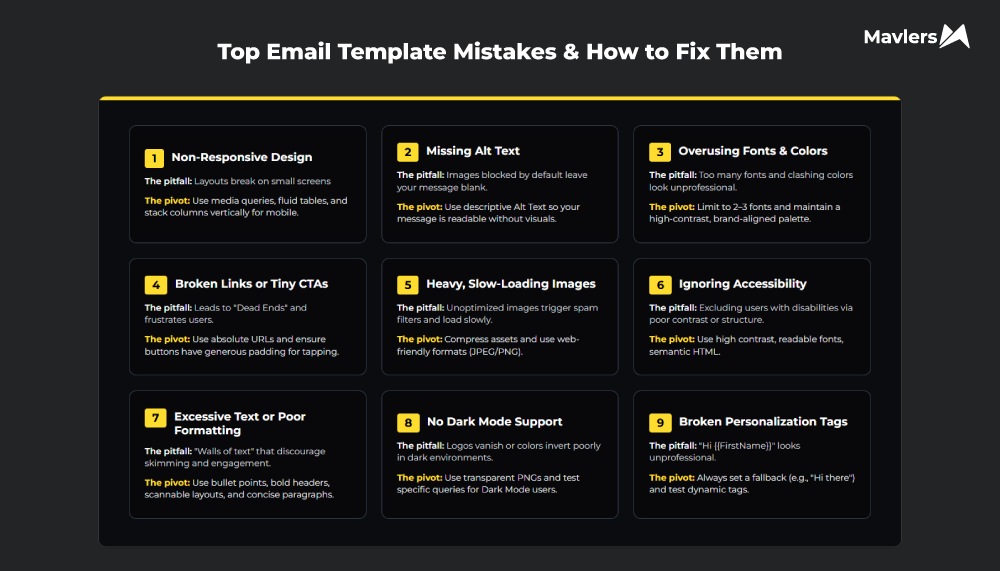
Here are the top 9 email design mistakes that negatively affect your email engagement, along with guidelines to rectify them before your next send.
Meanwhile, here’s a look at The Future of Email Templates: Key Design Trends for 2026
1. Non-responsive Email Designs
Responsive email design has appeared on every “Top Email Trends” list for over a decade, yet here we are.
In the era when mobile phones are glued to users’ hands, we see non-responsive email as less of a technical blunder and more of a suicide.
Despite this, many marketers still gamble on non-responsive email designs due to its perceived complexity, cost constraints, and time investment.
Try it yourself. Send campaigns loaded with cheaper non-responsive email templates without offending users with bad layouts, illegible fonts, and slow email load times. You can’t. Not without the low email open rates, high deletion rates and lost conversions as consequences of this negligence.
How to Avoid This Email Template Mistake:
- Stop trying to make your email look like a website. A single-column layout is the only way to guarantee a “Goldilocks” reading experience on mobile devices.
- Replace fixed pixels with percentage-based widths and fluid tables. It lets the email “breathe” and adapt to the specific real estate of the device.
- Heavy visual stacking or overlapping elements that depend on precise spacing are the first thing to collapse on smaller screens. Avoid them.
- Use Media Queries to guide smooth layout shifts. At 480px breakpoint, your CSS should automatically stack your columns vertically and scale your font size up to at least 16px for readability without the squint.
Dig deeper: How to Create A Responsive HTML Email Template without Media Queries
2. Overusing Images and Ignoring Alt Text
Image-heavy emails look great in design tools, until they reach real inboxes and break.
Image-heavy emails run into rendering problems quickly. Some email clients block images by default. Some users keep them turned off. In those instances, the message disappears with the blocked image as there is no text for supplementing the context.
The email deliverability concern is also alarming. Image-heavy emails can raise spam filter red flags because spammers have historically used large images to hide text. Filters are smarter today, but extreme text-to-image imbalance still creates deliverability risk.
Plus, screen readers can’t interpret text embedded in images. Dense visuals are harder to process on small screens. And newer AI-powered inbox features struggle to summarize emails that contain no readable text.
As Megan Boshuyzen, Sr. Email Developer at Sinch echoes the same email template mistake:
“Lately, I’ve heard people suggesting all-image emails, but that’s a pretty bad idea. Screen readers can’t read the text, images don’t always work well on mobile, and AI tools can’t summarize the content effectively.”
Even when emails aren’t fully image-based, missing alt text creates the same failure. If images don’t load, alt text gives the interpretation. Without it, users see empty boxes and broken context.
This is a bigger problem when it comes to CTA. Engagement takes a blow of it when the primary call to action sits in an image devoid of a text-based fallback.
How to Avoid This Email Template Mistake:
- Follow a healthy balance of at least 60% live text to 40% images.
- Using an image for a CTA is a sin. Instead, opt for a “bulletproof button“. It’s a snippet of HTML and CSS that renders perfectly even if every image in the email is blocked. Clickable. Readable. Reliable.
- Standard Alt text (e.g., alt=”Product Image”) is the bare minimum. Styled Alt text is the pro move. Apply inline CSS to your <img> tags and you will witness how convenient it is to customize the text in terms of font, color, and size. It’s a great move if you don’t want to warrant recipients’ negative attention in case a hero image doesn’t load. Because a well-designed text does exist in place of the shabby, blocked image.
- Skip hosting images on relative paths (e.g., /images/logo.png). Instead, host them on public servers with absolute URLs (e.g., https://yourbrand.com/image.jpg).
3. Overusing Colors and Fonts
In an attempt to make an email “pop,” marketers often fall into the trap of visual maximalism. It’s when every element is shouting for attention through a different typography or a neon highlight and nothing gets heard.
How to Avoid This Email Template Mistake:
- A focused color palette (3–4 colors) creates brand recognition. When you deviate into a dozen different shades, you dilute your brand identity. Use neutral tones for the “boring” parts (backgrounds, secondary text) and reserve your high-energy brand colors exclusively for things that move the needle.
- An eye-catching email template shouldn’t require two, maximum three, typefaces. We know a lot of emails did a pretty good job with one bold sans-serif for headers and a highly readable serif or sans-serif for body copy.
- Define your primary (CTA), secondary (links), and neutral (body/background) colors and lock them into your template.
- Use tools like Email on Acid or accessibility checkers to ensure your text-to-background contrast ratio meets WCAG standards.
- The text without a strong enough contrast ratio against the background is invisible to visually-challenged readers and in direct sunlight settings. So, you skip it.
- Use colors for specific psychological triggers. Bright, high-contrast colors belong on your primary CTA. Neutral or darker tones should be used for supportive information to help the reader “relax” into the content.
- If your “Unsubscribe” link is the same bright red as your “Buy Now” button, you’ve neutralized the power of your CTA. You’ve failed to teach the user’s eye where the value lies.
- A/B test how your colors render when a device dark-mode inverts them.
For a deeper look at using color the right way in email templates, check out our guide on color psychology.
4. Broken Links or CTAs
A broken link is one of the fastest ways to kill an otherwise good email.
You can get the open. You can earn the click. But the conversion suffers , and so does the trust, when the link redirects to a 404 page, outdated landing page, or the wrong URL.
This mistake usually comes from late-stage changes:
- A landing page URL gets updated.
- A UTM parameter is edited.
- A button is duplicated and one link doesn’t get swapped.
The email design still looks fine. The failure only shows up after a recipient clicks.
HTML emails make it easier to commit this email template mistake. Unlike plain-text emails, most URLs are hidden behind buttons, images, or linked copy. You can’t catch broken links by scanning the email visually. Every single one has to be clicked and verified, including secondary links and image-based CTAs.
Additionally, buttons with tight padding or poorly defined tap areas may technically work, but fail in practice. That friction shows up as lower engagement.
Tools like Litmus Email Guardian help catch broken links, images, and other issues before emails go out—when fixes are still simple. Once a campaign is live, your options are limited and messy.
If a broken link does fall through cracks, teams usually face an uncomfortable choice: Redirect traffic by recreating or moving the landing page to match the bad URL, or follow up manually with corrected links. Neither is ideal. Both cost time, trust, and momentum.
How to Avoid This Email Template Mistake:
- Click and check every button, image, and social icon. Also, send a test email to a mobile device.
- Use link-checking software to verify that every URL returns a 200 OK status before the campaign is triggered.
- Ensure your buttons have at least 15-20px of internal padding. This makes the entire button clickable.
5. Image Files That Are Too Large (and Too Slow to Load)
In our quest for high-fidelity branding, we often forget that the inbox is a hostile technical environment. Your subscribers aren’t all sitting on high-speed fiber. If your email template is bloated with unoptimized assets, all you’re delivering is a “Loading…” spinner.
Large, unoptimized images, specially animated GIFs, are a tax on email loading speed. GIFs are easy to overuse and hard to keep lightweight. As a result, they take longer to load, chew through mobile data, and sometimes don’t render in some clients at all. On a mobile-first inbox, that delay is often enough for a subscriber to scroll past or close the email entirely. You become a “high-cost” sender, leading to higher unsubscribe rates.
How to Avoid This Email Template Mistake:
- Keeping total image weight in check goes a long way. While some “best practices” suggest a ceiling of 3MB, the reality of modern deliverability is that under 1MB is the gold standard.
- Every additional second of animation adds weight. If you find animations beyond 10-second, truncate it to shorter 2–3 second loops.
- Running your images through tools like TinyPNG or Optimizely does a lot in removing unnecessary metadata from your JPEGs and PNGs. Which means you can reduce file size retaining its image quality.
- Photos compress better as JPEGs, while PNGs are safer for logos, text, or transparency.
- Don’t rely on HTML to resize oversized images—export them at the correct dimensions and let responsive widths handle different screen sizes.
- The first frame of your GIF should contain the “core message.” If the file is too heavy to play, many clients will simply display that first frame. If it’s a blank transition, the user sees nothing.
6. Ignoring Accessibility
Accessibility is often treated as a compliance checkbox or a “nice-to-have” for social responsibility. The truth: emails without accessibility considerations exclude an entire set of your audience and affect your email reach. Besides that, leaving subscribers excluded is never a good way to create a positive brand reputation.
How to Avoid This Email Template Mistake:
- Use semantic HTML and proper heading hierarchy.
- Include alt text for images. Don’t describe the image; describe the purpose of the image.
- Maintain sufficient contrast and readable font sizes.
- Test with screen readers.
- Centered text gives the “premium” vibes. But long blocks of centered text are hard for dyslexic users to read. Hence, it’s best to go vanilla and keep the body copy left-aligned. It offers a consistent “home base” for the reader’s eye.
- To take some of the mental load off your shoulder, start with accessible email templates and tools like Litmus to check for accessibility in design automatically.
7. Excessive Text or Poor Formatting
Long walls of text and poor formatting make emails hard to scan. Most readers skim emails rather than reading every word.
How to Avoid This Email Template Mistake:
- Short paragraphs and bullet points are a must to keep the design light and airy.
- Let the crucial information shine with bold text or headings.
- Include clear CTAs near the top and throughout the email.
8. Ignoring Dark Mode Compatibility
We’ve moved past the era where Dark Mode was an “edge case” for developers and night owls. For one simple reason: a significant portion of email opens now happen on devices set to dark mode.
With over 35% of all email opens happening in Dark Mode, and that number increasing, ignoring this setting will make your brand emails poor email design examples.
If a user has Dark Mode enabled, the client will force a background flip. If you have hardcoded specific background colors or used non-transparent images, you’ll end up with:
- A white rectangle around your logo or product images. This jarringly cuts through the dark UI.
- A dark-colored logo on a transparent background that vanishes in black background.
- High-contrast combinations that become unreadable “grey-on-grey”.
But you don’t need two different templates. You need a design strategy that is mode-agnostic.
How to Avoid This Email Template Mistake:
- For a dark logo, don’t just use a transparent PNG. Add a subtle, translucent white stroke or outer glow around the logo file. In Light Mode, it’s invisible. In Dark Mode, it lifts the logo and makes it legible against background darkness.
- PNGs are generally safer here because they support transparency and hold up better across dark mode treatments.
- The more colors an email uses, the more unpredictable dark mode rendering becomes. Simple palettes are easier to predict and manage, and more prone to stay on-brand across both light and dark environments.
9. Misusing or Skipping Personalization Tags
Email Service Providers (ESPs) allow you to use personalization tags (like {{FirstName}}, {{CompanyName}}, etc.) to make emails feel tailor-made for each subscriber. But many teams either forget to use them or insert them incorrectly — leading to awkward results for instance “Hi ,” instead of “Hi Alex,”.
Not using personalization in emails make them look more generic and blast-y. Those are the ones that subscribers are tired of. Broken tags are way more terrible than no personalization. Such emails end up looking unprofessional and less credible.
How to Avoid This Email Template Mistake:
- Always test dynamic tags before sending.
- Include fallback text (e.g., {{FirstName | default:”there”}}).
- Personalize more than just the greeting — use dynamic content for offers, recommendations, or locations.
Wrapping Up
Your email template design all influences whether your message is read, skimmed, or ignored. Being conscious about not making these design mistakes help you turn text into a guide, improving engagement they garner. Take control of your email design today and see the difference it makes.
Get started with our email design and development team to bring your next campaign to life!

Smita Zende


Urja Patel