


Building scalable email programs in Klaviyo requires moving beyond one-off template creation. The foundation of enterprise-grade email workflows is a modular architecture—one where your most critical content components live in a centralized repository and automatically sync across every template, campaign, and flow that uses them. And that’s where email templates for Klaviyo with a centralized structure truly shine by maximizing reusability.
Klaviyo universal modules solve a fundamental operational problem: template maintenance sprawl. When your footer links change, your brand logo evolves, or your compliance footer needs updating, you face a choice between manually hunting through dozens of templates or risk sending inconsistent messaging. Universal modules eliminate this friction by creating a single source of truth for repeatable content patterns.
In today’s guide, we’ll find out what universal modules are, and how to use them. Let’s go!
What are Universal Modules in Klaviyo?
Universal Modules are reusable, editable content blocks that you can plug into any Klaviyo email template. They allow marketers to:
- Drag and drop pre-coded layout blocks
- Edit text, images, and buttons directly in the editor
- Maintain brand consistency without coding
- Prevent layout or structural breaks
In short, Universal Modules combine developer precision with marketer flexibility. This concept is central to creating custom Klaviyo email modules that work across multiple touchpoints.
Examples include:
- A header module with logo and navigation links
- A product spotlight block with image, description, and call-to-action button
- A footer module with compliance links and social icons
Once built, these modules can be reused across any email, helping brands build Klaviyo modular email templates that scale effortlessly.
Why you should use Universal Modules for Klaviyo Email Design
Here’s why Universal Modules are a game changer for scalable, brand-safe email production in Klaviyo:
- Reusability: Build a module once and reuse it across multiple templates, which ensures consistency while reducing repetitive effort.
- Easy Maintenance: Update a module once, and the changes reflect everywhere it’s used, thus eliminating the need for manual updates.
- Drag-and-Drop Functionality: Universal Modules can be made drag-and-drop ready, letting marketers rearrange sections directly in the editor.
- Team Collaboration: Developers build the module once; marketers and designers simply reuse, customize, and assemble without touching code.
- Consistent Branding: Ensures every email follows the same visual, structural, and brand guidelines—no design drift or off-brand layouts.
- Time Efficiency: Accelerates campaign creation, reduces production cycles, and does away with the need to rebuild common components.
Creating Email Templates in Klaviyo
Before making your email dynamic and drag-and-drop ready, you first need to correctly import your custom HTML into Klaviyo. This preserves your layout, styling, and structure for future editing and module setup. It’s really simple; just follow these steps:
- Go to Content → Templates from the left-hand menu.
- Click Create Template and select HTML Template (not drag-and-drop).
- Paste your full HTML code directly into the editor, or upload your HTML file (.html format).
- Klaviyo will automatically render and preview the design.
- Click Save Template to store it for reuse and further customization.
Now, a simple Klaviyo Universal Module looks like this:
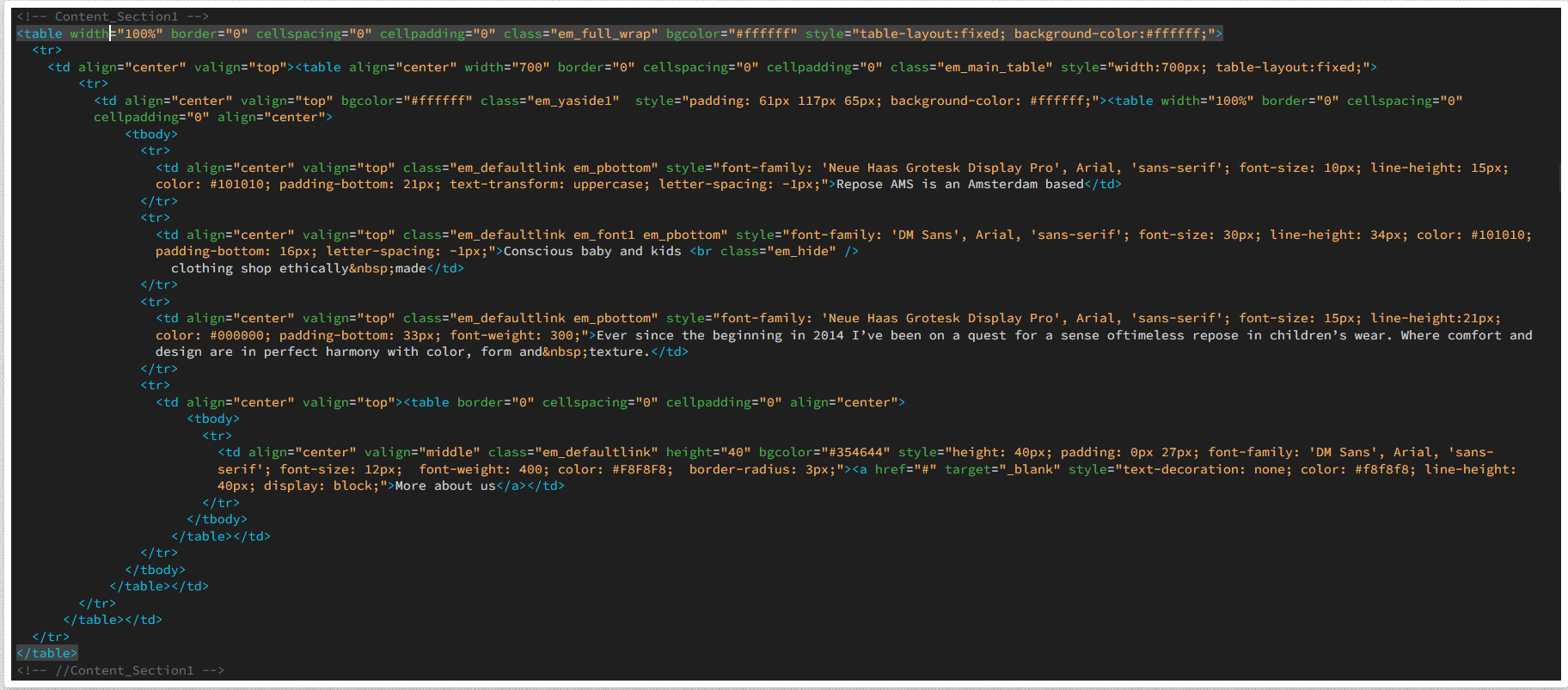
This HTML code builds a reliable email content block using table-based structure to ensure compatibility across email clients. The outer table creates a full-width container, while the inner 700px table keeps the content centered and neatly aligned.
It uses nested <table> and <td> elements with inline styles to control typography, spacing, alignment, and background—necessary because many email clients strip external CSS.
The text blocks are styled to convey brand messaging, using font size, letter spacing, color, and text-transform to create visual hierarchy. The section ends with a CTA button built using a styled <a> tag inside a table cell, with padding, background color, border radius, and block display to maintain its button-like appearance across even restrictive email clients.
Creating the Email in Klaviyo
Once your HTML template is saved in Klaviyo, you can start building emails using it while adding custom-coded modules and saving them as reusable Universal Modules:
- Go to Campaigns → Create Campaign, and choose Email as the channel.
- In the Content step, select Saved Templates, then choose your custom HTML template.
- Add your subject line, preview text, sender details, and run a test send before launching.
- In the email editor, go to the Blocks section on the left.
- Drag a Text block into your email where you want the custom HTML module to appear.
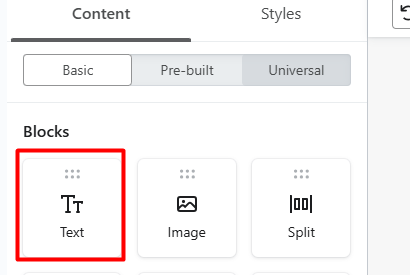
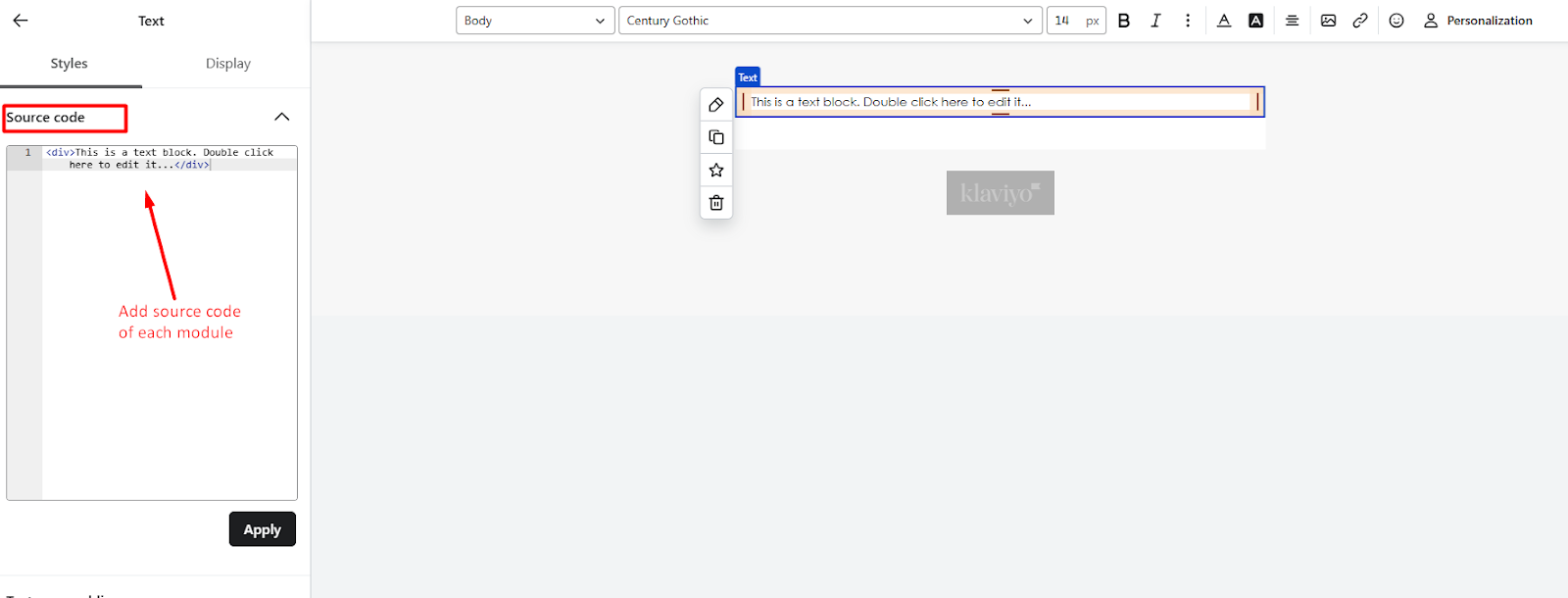
- Click inside the Text block and open the Source Code (<>) editor.
- Paste your custom HTML module inside the source editor and click Save—it will render instantly.
- Click on the newly created content block, then select the Star icon to save it as a Universal Module.
- Name the module (example: Header Module, CTA Section, Footer Block) for easy identification.
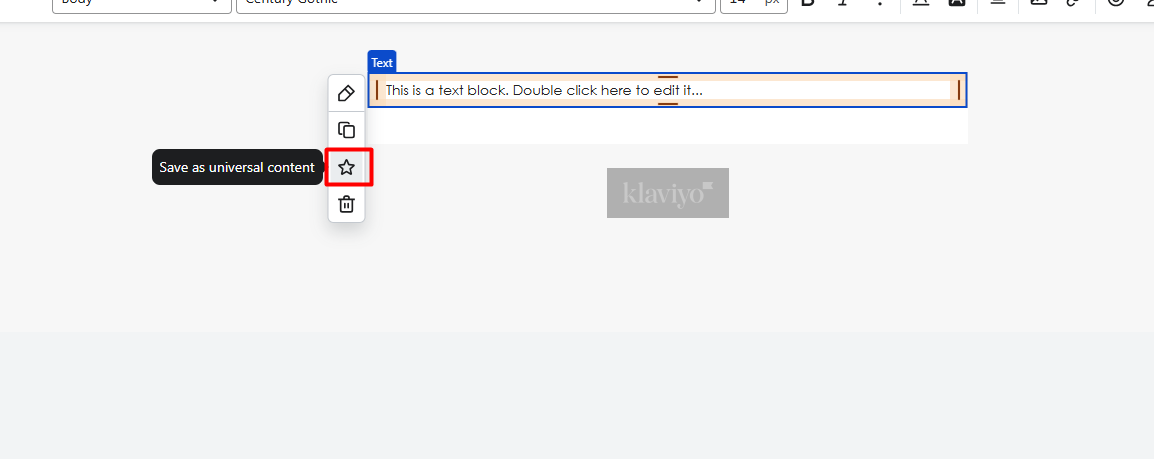
- The saved Universal Module will now appear in your Block Library, ready to drag, drop, and reuse in any future email—without recoding.
Now this structured approach helps brands develop highly efficient modular email templates in Klaviyo. But wait, there’s more you can do.
Using Dynamic Product Data in Klaviyo Emails
To make your custom-coded template fetch live product details in Klaviyo, you need to activate Klaviyo’s dynamic data capabilities using the built-in Product Block. This block connects directly to your product feed, allowing key attributes like product title, image, price, and URLs to display dynamically when the email is previewed, tested, or sent.
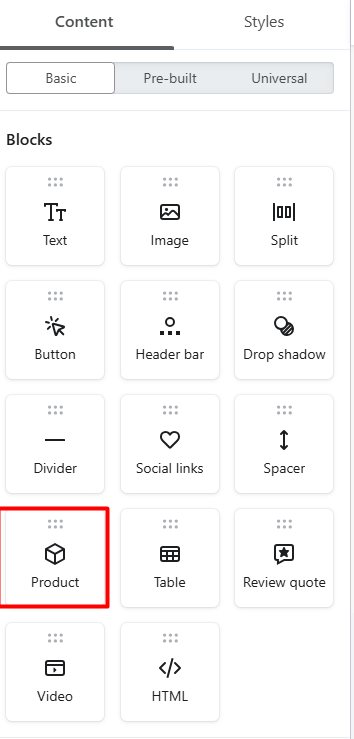
- In the email editor, drag and drop the Product Block into your layout.
- Under the Styles tab, select Dynamic.
- Choose the product details you want to display (e.g., title, image, price, link).
By incorporating the Product Block, you enable your template to render real-time product data from your feed. Once configured, your custom HTML modules can reliably access and display that dynamic content across all sends and previews.
Now, for a dynamic email template in Klaviyo, you can also hide the product block.
Hiding the Product Block During Sends
To activate the product feed without showing the Product Block in the final email, you can hide it using Klaviyo’s Show/Hide logic. Here’s how you can do it:
- When you add a Product Block, it automatically loads the product feed into your template.
- If you don’t want it visible when sending to subscribers, open the Display tab for the Product Block.
- Under Show/Hide Logic, select Code.
- Type false to prevent the block from rendering on send.
This will ensure that the block does not render when sent, especially when you’re using a Klaviyo drag and drop template or hybrid structures combining modular HTML.
Advanced Use: Product Feed Loops
Once the product feed is activated in your Klaviyo template, you can leverage that data to build personalized product recommendations and design layouts with far greater flexibility than standard Klaviyo blocks allow. With feed variables accessible, you’re able to fully customize structure, styling, and logic based on your campaign needs, particularly when you want to create drag-and-drop blocks in Klaviyo that incorporate custom loops.
For example, consider the following piece of code.

This is a simple “for” loop that will display the image, title, and price of the first three products that show up in the feed, as well as link the image and title back to the product page.
This approach lets you go far beyond standard Klaviyo blocks creating highly customized product grids and recommendations using email templates in Klaviyo built with personalization logic.

Getting Started with Klaviyo Email Templates
Klaviyo’s standard blocks are great for starters—but when you combine custom HTML, Universal Modules, and dynamic product feeds, you unlock the full potential of the platform. You’re no longer just building emails, but you’re building scalable, modular systems that any marketer can customize, personalize, and launch without ever breaking structure or touching code. That’s the power of email templates for Klaviyo built for enterprise scale.
By integrating live product data, modular layouts, and drag-and-drop flexibility, your templates become future-proof—ready for automation, personalization, and performance at scale. So whether it’s a Klaviyo custom HTML template or a fully engineered modular framework, this is how high-growth brands build email systems, not just email designs.
If you’d like help turning your static HTML into fully dynamic, drag-and-drop-ready Klaviyo modules, let’s get started!

Vishwajeet Maurya


Susmit Panda - Content writer